Editing Text Fields
Clooz editors use text field editing controls when you enter or edit text in a variety of fields. The behavior of these edit controls changes when appropriate for the type of data being entered:
Basic Text Fields
The basic text edit control behaves the same as most standard Windows text edit fields:
-
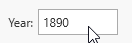 To activate the edit mode, either click inside the edit box or tab (or shift-tab for reverse) into it from an adjacent field.
 -
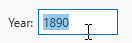 When first activated, any existing text will be highlighted for replacement. If you were to immediately start typing, the new text would replace the highlighted text.
 -
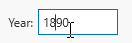 To edit the existing text, position the cursor (should appear as the edit cursor) at the desired character position for where you want to start inserting characters. You can use the Home key to move to the beginning, or End key to move to the end.
 -
When the desired text is displayed, click in another field you want to edit (or press tab / Shift-tab key to move to the next / previous field).
In some many cases, hover the cursor over the field's label to see any pop-up hints that Clooz has for that field.
This basic form of the text edit control is used when the field values are more likely to differ from the same field in other records. User defined ID fields, age, dwelling numbers, etc. are examples of these types of fields. Name fields in Information Records Information Records in Clooz hold the content information coming from a document or other source. These differ from a Source record that contains most of the citation information describing the docment, or the Repository record referring to the facility or online service where the document was found. use this type of field since you are meant to be recording names as entered into the Source A source record in Clooz should be viewed as the higher level components of a source citation. Citation details are pulled from the citing Information Record. document (misspellings or name spelling variations included).
Most times the basic text edit control is meant to be a single line (as seen above). However in some cases it is expanded into a text block to allow the entry of multiple lines of text (such as for descriptions, comments, and remarks). The multi-line text blocks operate the same as the single line controls, except Enter can be pressed to move to the next line of text.

Constrained Text Choices
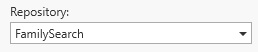 Some edit controls only allow you to select a value from the drop-down list. When such a control is not the active control of focus, it will show a down arrow on the right side.
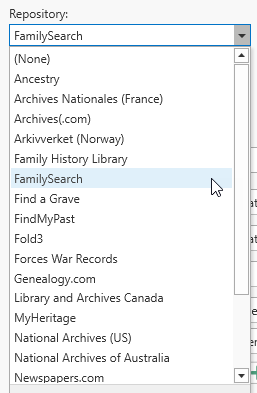 Click on the control to open the drop-down list (or press ALT+DOWN ARROW or F4). Then select the desired value. You can use the Up or Down keys to select another value (then press Enter), or simply click the desired value.
When exiting such a control, whatever value is showing in the box is the one that will be retained. If a different value is highlighted in the drop-down list, but not selected (Enter or click) prior to exiting the control, the value is not changed.
Auto-Fill Text Fields
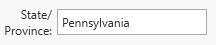 Data fields where values will likely be used multiple times (such as country, state, and county names) will display a drop-down list to choose from and also suggest automatically completed text as you type. When the edit mode is not active, these control appear like the basic text controls.
 When the edit mode for the control is activated, a down-arrow will appear on the right side. The entire text is initially selected for replacement. Set the cursor to a specific character position to modify the value, otherwise whatever you enter will replace the highlighted text.
To open the list, press ALT+DOWN ARROW or F4, or click on the dropdown button.
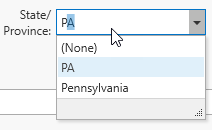 In addition, as you enter text characters into the field the first matching value from the list beginning with the same characters will be used to auto-complete the rest of the field. The suggested additional text is highlighted such that if you continue typing, it will be replaced with an updated matching suggestion.
Before exiting the edit control (either by clicking another control or pressing the tab key), ensure the text appears in the box the way you want it. Selections from the list must be complete by clicking them or pressing the Enter key in order to make the change the field's value.
There will be times when you have typed in the text you want but Clooz is extending it with a suggested text (i.e., you do not want the suggested text). Assuming the cursor is after the last character you typed and the suggested text is highlighted, simply press the Delete key to erase the suggested part. Then exit the box.
The content of the drop-down list is an accumulation of all the entries you have made into that type of data field (country, state, religion, surname, street name, etc.). If you need to change all of the occurrences of a particular value, use the List editor in the Home tab, Tools.
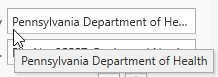 Any text field where the text is wider than the available space will show an ellipsis at the end of the otherwise visible text. Hover the cursor other the control to have Clooz display the entire text value in a pop-up window.